

Photo geolocation associates an image with a place. That information can help organise an archive, find the location of a shoot or explore a collection on a map. It also requires care: a location can reveal information you did not intend to publish.
Before changing anything, distinguish three things: GPS information embedded in a file, a place assigned within a photo library and a location added to a social post. They are related concepts, but one does not necessarily update the others.
Why add location information?
Organise your collection
Photographers and travellers can use places to retrieve images from a particular area or remember where a scene was photographed. A consistent approach makes a growing archive easier to explore.
Provide local context
A correct location can help explain what an image represents. However, adding coordinates should not be treated as a guaranteed way to improve Google rankings or a Business Profile's visibility. The original article's strong SEO claims should not substitute for evidence.
Capture location on Android
Check the camera application's location setting and the permissions granted by Android. The device must be allowed to determine location, and the camera must be configured to save it where supported.
Setting names vary by manufacturer and version. Take a test photo and inspect its information rather than assuming that activating location services always adds coordinates to every file.
Capture location on an iPhone
Review the iPhone's location services and the permissions for the camera. Choose the access appropriate to your needs and check a captured photo's information.
Location availability and precision can vary. If you do not want that information recorded for a particular use, review the setting before taking or sharing the picture.
Manage places in Google Photos
Google Photos can display and manage location information associated with images. Depending on how the place was determined, you may be able to add, edit or remove an estimated or manually assigned location.
Do not assume every camera-recorded location can be edited in the same way. Also distinguish a change in the library from a rewrite of the original file's GPS metadata.
Assign a place in Photos on Mac
Select the image and open its information in Photos. Where the option is available, assign or adjust the place, then check the result in the library.
If you export the image, inspect the export settings and the resulting file. Information visible in an application is not proof that it is included in every exported or shared version.
Use Lightroom for a managed workflow
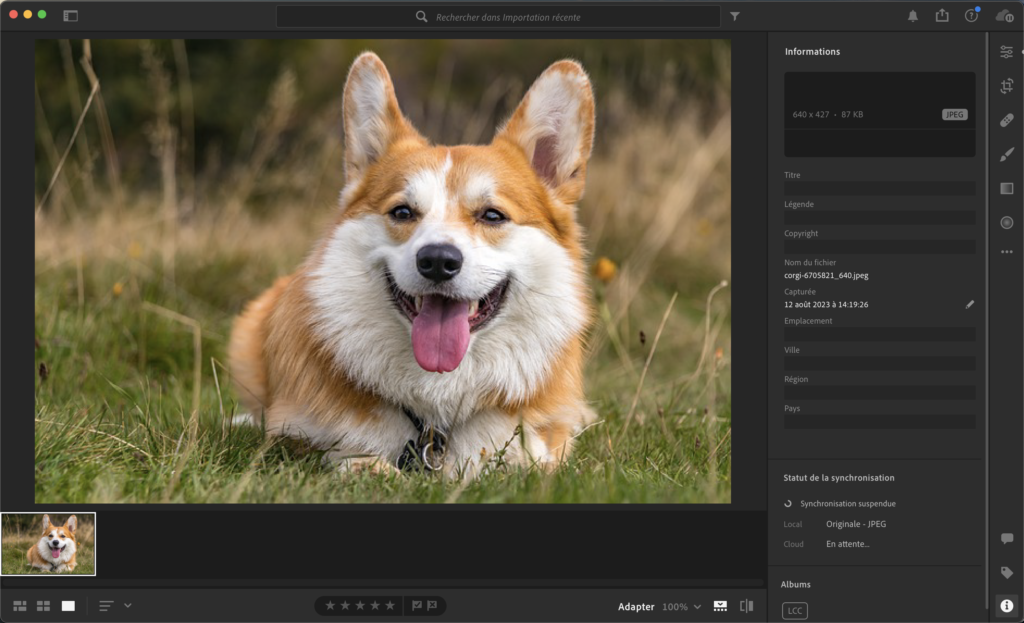
In a compatible Lightroom workflow, inspect the location and metadata controls for the version you use. A map or location fields can help organise images and correct information.
Keep place names and precise GPS coordinates distinct. Review how your export handles metadata before relying on the final file. An old screenshot is an illustration, not a guarantee of identical controls in every edition.
Consider online tools carefully
Some services can inspect coordinates, show a point on a map or help edit location data. Before uploading a file, consider its sensitivity and the service's handling of uploaded material.
A public tool is not automatically appropriate for client photographs or private locations. Work on a copy and verify the result before replacing an original.
Check what you share
A home address, private venue or sensitive site may not belong in a public file. Review the image information and sharing settings. Platforms can also process or remove metadata, so check the actual result rather than assuming preservation.
Use geolocation for accurate organisation and useful context. Keep a clear distinction between the information in your working library and what another person receives.