Communications team
Bring contributions together and identify content to prepare, correct or approve.


Organising public-sector teams
Define who can prepare, review, approve or publish. Separate profiles, media and access by department or facility, with approval workflows that fit your organisation.
Different realities. The same need for clarity.
Communications staff, contributors, leadership or contractors: everyone works in the relevant spaces with the actions their role allows.
Bring contributions together and identify content to prepare, correct or approve.
Involve staff in preparing content without granting unnecessary access.
Define who can approve and in what order, using the workflow configured in each DailySpace.
Give each contributor the permissions needed in the relevant spaces, then adjust them as their role changes.
Spaces, permissions and responsibilities
Choose the members of each DailySpace, set their permissions and configure approvals before bringing teams together.
Choose who can view, prepare, edit, approve or publish according to each staff member’s or contributor’s responsibilities.
Configure optional or mandatory approval with sequential or group stages. Posts follow the rules of their DailySpace.
Separate social profiles, media, content and members when teams need distinct workspaces.
Identify drafts, feedback and pending approvals so you can act in the right workspace without chasing every colleague blindly.
Shared calendar
Communication in progress
To prepare
2 posts
To approve
3 posts
Scheduled
4 posts
Structure workspaces, assign permissions and define approvals so teams know how to move forward and who makes the decisions.
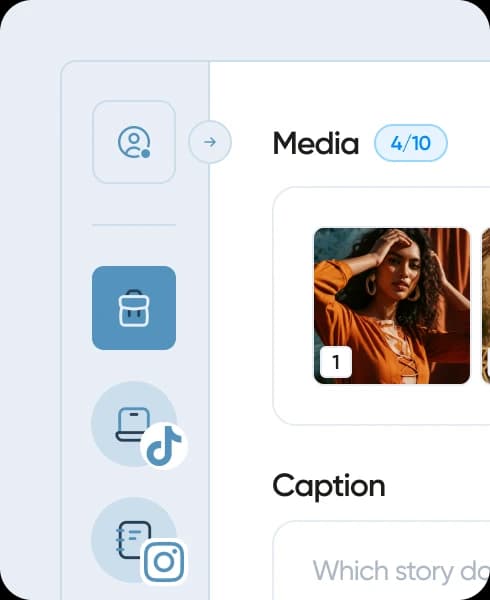
Create the DailySpaces you need and assign social profiles to the relevant departments or facilities.
Add members and define the actions their role permits in each workspace.
Designated approvers review content in the planned order, following the DailySpace rules.
Find feedback, decisions and content status to see which team needs to act.
Tangible results
Every contributor has the workspaces and actions needed for their role.
Comments and approvals stay attached to the relevant content.
Adjust members and permissions without rebuilding your workspace structure from scratch.
Explore answers for the Dailyfy feature you are interested in.
Bring several contributors into one DailySpace or create separate workspaces by department or facility. Each workspace keeps its own profiles, media, members and approval rules.
Yes. Choose the roles and permissions needed in each DailySpace: view, prepare, edit, approve or publish according to each person’s responsibilities.
Yes. Approvers and rules are configured per DailySpace. Set optional or mandatory approval with sequential or group stages.
Yes. The demo starts with your departments, social profiles and approval workflow to explore a suitable setup.
Assign profiles to the right DailySpaces, define members and permissions, then configure each workspace’s approvals before scheduling.
Yes. Start from a shared draft, then adjust the text, media, mentions, hashtags and timing to each platform’s rules before scheduling.
Dailyfy brings supported comments, messages and reviews into a shared inbox. Filter conversations, keep their context and reply without opening every network.
Yes. Assign a conversation, add a private note and track its progress so everyone knows which response or action they own.
The dashboard brings together content to prepare, pending approvals, scheduled posts, conversations to handle and key workspace results.
Yes. Each DailySpace keeps its own profiles, members and data. Switch between them while keeping organisation and responsibilities clearly separate.
Prepare workspace reports for the relevant teams without mixing profiles and results from different departments or facilities.
Yes. Select the metrics relevant to your goal, compare periods and build dashboards or reports suited to your team.
Organise institutional sources and inspiration in the relevant team spaces so contributors share the same references.
Yes. Saved inspiration stays available in Dailyfy and can start a new piece of content, complete with its link, media and context.
Each facility can have a Dailyfy.bio page with its own links, managed in its workspace without mixing resources from other departments.
Yes. Dailyfy.bio analytics show which links and content attract the most clicks so you can improve your page and future posts.
Our team can help configure Dailyfy for your content, networks and organisation.
Contact usOrganising public-sector teams
Tell us about your teams, their responsibilities and required approvals. We will show you how to organise them in Dailyfy.