Yes, you can rearrange posts on your Instagram profile without deleting or republishing them, using the native reordering control when it is available on your account. However, moving a post, adjusting its thumbnail and preparing future publications are three different operations.
2026 guide, information checked on 20 November 2026. Here are the steps to follow in the app and the checks to make before changing your profile layout. Control names can vary with your language and installed version.
What actually changed in the Instagram grid in 2026?
On 12 June 2025, Adam Mosseri announced plans to let people reorder profile posts. That announcement did not mean immediate availability for everyone. On 8 June 2026, Instagram’s official account announced the rollout of drag-and-drop reordering.
It is therefore no longer accurate to describe the feature solely as an experiment for a handful of US creators. Equally, a rollout announcement does not prove that every account now has an identical menu. Check what your app offers instead of relying on an assumed “iOS first, Android later” timetable.
Another important distinction: your profile grid is the mosaic visitors see when they open your account. The home feed is where people discover posts. Rearranging your profile does not let you choose the order of your followers’ feeds.
How to change the order of Instagram posts
Start with an existing post you would like to make more prominent. Take a screenshot before making changes: it gives you a reference if you change your mind, without depending on an automatic return to the original layout.
- Open the Instagram mobile app, then your own profile.
- Press and hold a post in the grid to open its menu.
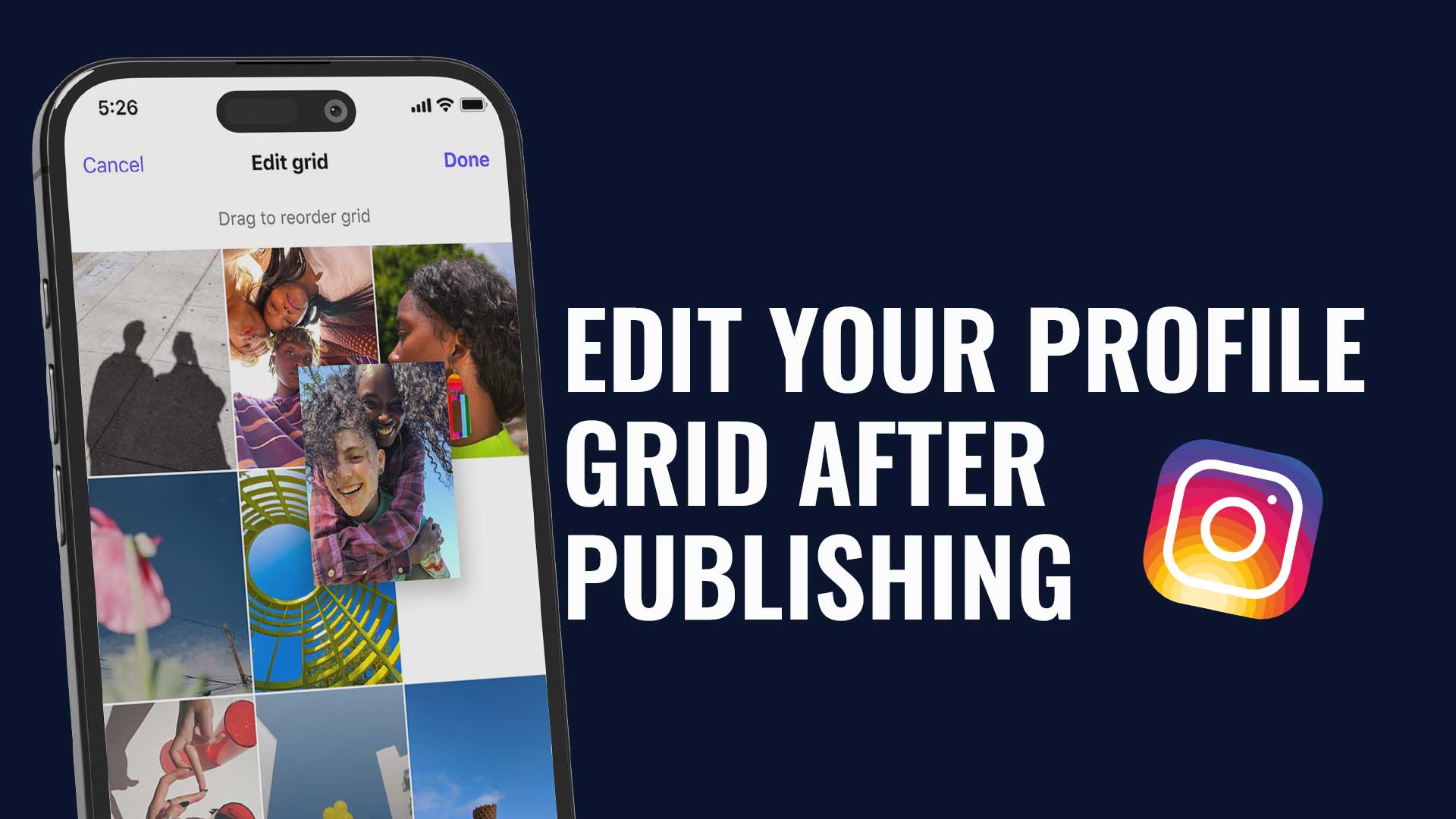
- Choose Reorder grid, the label shown in the official English demonstration. Do not select Archive or Delete.
- On the reordering screen, hold a thumbnail and drag it to the desired position. Check the neighbouring posts that move as a result.
- Follow the on-screen instructions, then return to your profile to verify the order that was actually retained.
The official June 2026 demonstration shows an Undo control, not a mandatory Done button. Do not assume you have missed a button that your version does not show. Make one small change and check the result before reorganising the whole grid.
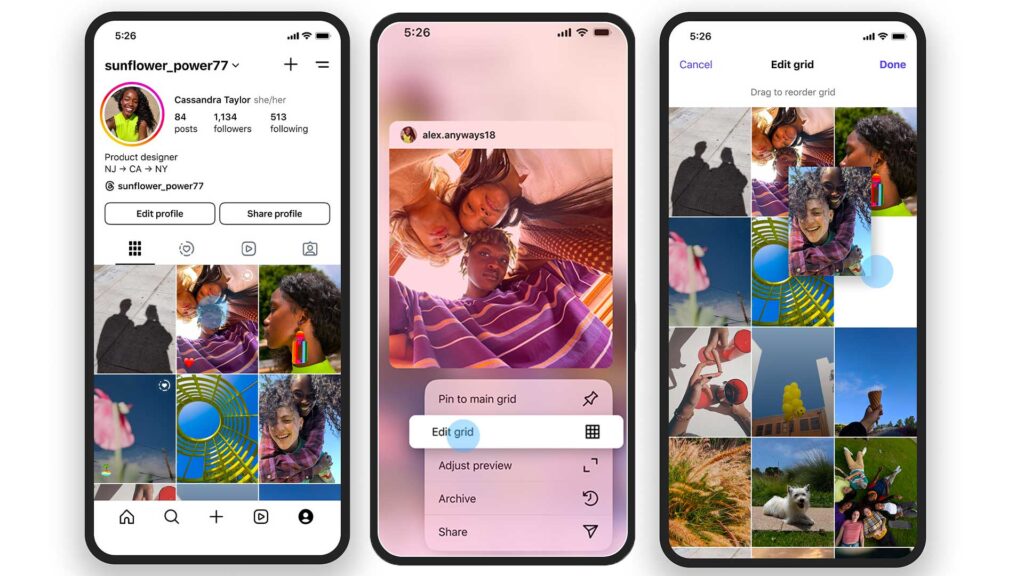
Reorder, pin or adjust the preview: which control should you use?
Instagram’s demonstrated menu separates these actions. Before changing a post, define the result you want: “move it to a different position” is not the same request as “make its title readable”.
| Your goal | Control to look for | What to check |
|---|---|---|
| Change the position of published posts | Reorder grid | Review all thumbnails after the move. |
| Highlight a publication | Pin to your profile, where available | Check pin indicators and their effect on the layout. |
| Improve a thumbnail’s framing | Adjust preview | Compare the thumbnail with the opened post. |
| Arrange posts that are not published yet | Content planning and grid preview | Check publication dates, not just visual order. |
Native reordering keeps the existing post: it is not an instruction to delete and upload it again. A different position also does not automatically guarantee extra reach, likes or renewed distribution to followers.
What should you check if Reorder grid is missing?
- The right location: open your own profile, not the home feed or another account’s profile.
- The app: check for updates in your official app store, then restart Instagram.
- The post menu: try pressing and holding the post; older tutorials may show a different location or translation.
- The account: two accounts on the same phone may have different options.
- Official guidance: if the control is still missing, use the help available inside the app and report the issue through that channel.
Avoid services that request your login credentials or offer to unlock a native feature for a fee. Do not archive your entire grid or delete posts to reproduce a gesture unavailable on your account. You can already plan the arrangement of future content and return to older posts later.
How to adjust the preview without confusing thumbnails and photos
If your problem is a cropped title or poorly framed face, look for the preview-adjustment control when offered. Check which settings are actually available, reposition the crop if the interface allows it, then return to the grid to assess readability at thumbnail size.
This changes the post’s representation on your profile. It should not be described as replacing the original file or automatically changing every photo’s aspect ratio. Open the post afterwards to distinguish its full appearance from its thumbnail.
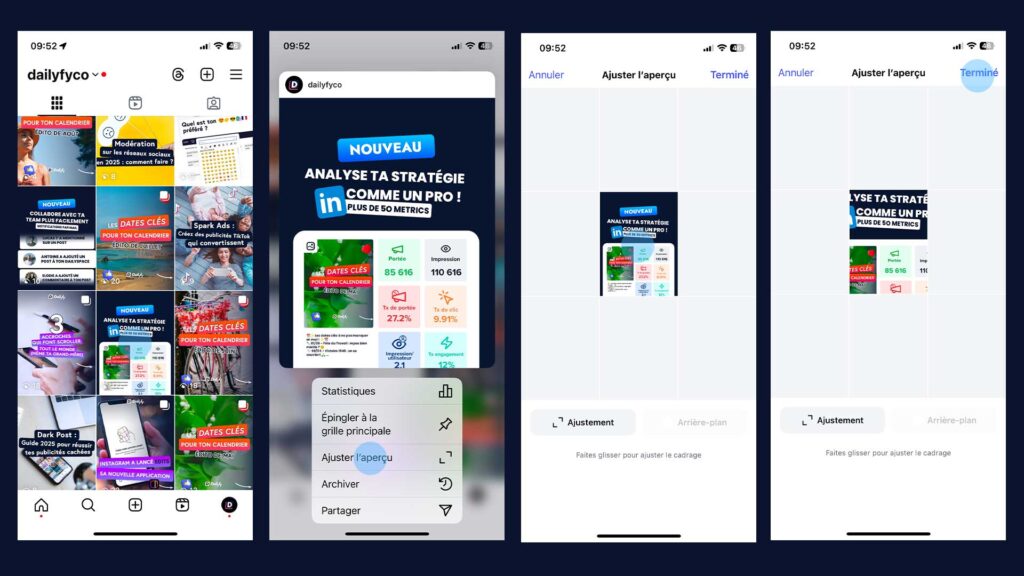
For detailed framing and readability advice, continue with our guide to Instagram grid previews and layout changes. To prepare your files, use the Instagram image and video format guide. This tutorial focuses on handling the grid of posts already published.
How can you organise a grid that stays useful?
Start with a simple purpose: show your current work, explain your offer or highlight work that is still relevant. Reread captions, prices and availability before giving an older post a more prominent position.
For example, a bakery might group a festive product photo, ordering instructions and an introduction to the team. Moving an expired offer back up simply because its colour matches would instead mislead visitors. The message matters just as much as the colour palette.
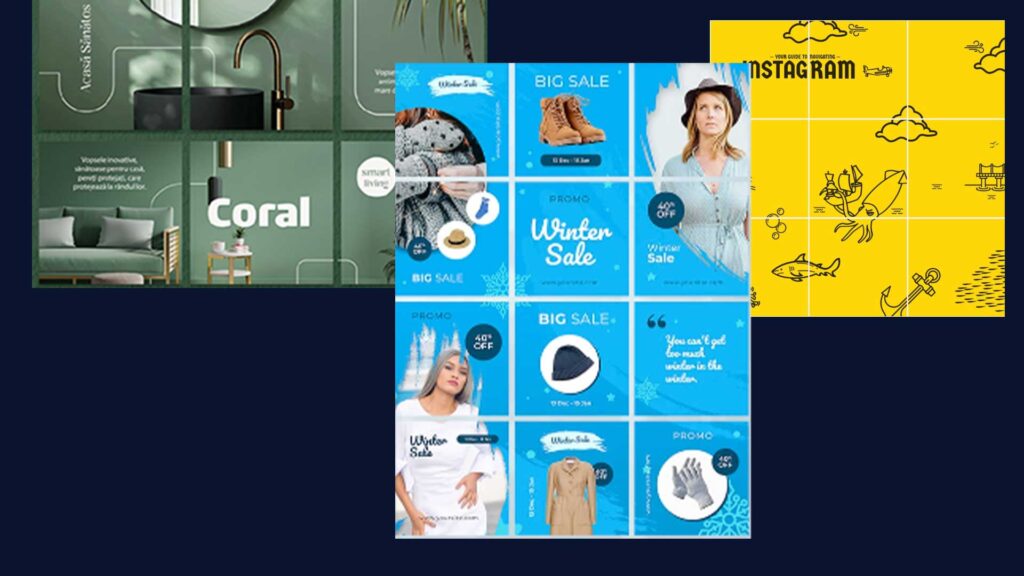
Make every post understandable on its own. A visitor may open one publication without studying the whole mosaic, while a new post or pin can change the balance you just created. Recognisable covers and clear themes are more resilient than a word or face split across several squares.
Prepare future posts with Dailyfy
Instagram’s native control acts on published posts. Dailyfy’s Instagram Grid view helps you prepare scheduled content with existing posts as context, for compatible professional accounts.
Moving a scheduled post in Dailyfy changes its scheduled date while keeping its time: check the calendar after rearranging it. This is not the same operation as moving an older post inside Instagram. A planning preview should not be presented as automatically reorganising an already-published profile.
Working with a team? Connect your grid review with a preview of each post, followed by editorial approval. Our community manager workflow guide helps you organise these stages instead of improvising for every publication.
Your checklist before leaving the profile
- Check that the displayed order matches your intention.
- Read titles and important details in the small thumbnails.
- Open moved posts to make sure their information remains relevant.
- Check highlighted posts and future scheduled content separately.
- Keep a screenshot of the result and tell your team what changed.
To centralise the preparation and publication of future content, explore Dailyfy’s Instagram features. A carefully organised grid makes your profile easier to browse; it does not replace useful content or conversations with your community.