Choose your columns
Show only what matters to you: status, approval, date, labels and assignee.

List view displays each post on a row with its status, approval and discussions. Choose your columns, filter what needs action and handle several posts at once.
14 days free, no credit card required
Profiles, status, approval, date, labels, discussions, assignee: choose columns, filter and sort. Each user keeps their settings. Click a row to open the post.
Explore shared editorial calendar.
To review and approve each post, switch to Feed view.
A spreadsheet shows what is planned. It publishes nothing, reminds nobody and does not know whether the client approved. List view brings planning and publishing together.
Swipe the table to compare both columns.
| Your tracking | Excel, Google Sheets or Notion | Dailyfy List view |
|---|---|---|
| Posts | Text copied into a cell, visuals elsewhere | The actual post, with visuals and preview |
| Status | Updated manually | Draft, awaiting approval, scheduled, published or failed, updated automatically |
| Client approval | By email or a cell comment | Approval tracked in a column, including change requests |
| Publishing | Done network by network | Automatic at the scheduled time, or immediately |
| Discussions | Scattered across email, Slack and the file | On the post, with internal notes kept separate |
| Text length | Check it yourself | Warning when text exceeds the network limit |
| What the client sees | The whole file, or another copy to make | Hide a post from the client in one click |
| Export | The file itself | CSV list export whenever you need it |
Already have a file? Keep it as a record and prepare upcoming posts directly in the list.
Show only what matters to you: status, approval, date, labels and assignee.
By network, post type, status, approval or assignee, for the week, month or upcoming posts.
Select posts, then assign, label, change their status or send for approval in one click.
Organise posts with content labels“To approve”, “To correct”, “My notes”: find posts waiting for someone in one click.
Status, approval, discussion count and assignee: no need to ask “has it been approved?”.
The Content column counts characters, hashtags and visuals, and warns you if text exceeds the network limit.
In a file, ideas linger at the bottom of a tab. Here, they appear in the list at the right time.
General note
Brand voice, moderation rules and hashtags to use: pinned at the top of the list for the whole team.
Monthly note
“October, cold brew month”: attached to a month, with a reminder on the 1st.
Dated note
A trade show, a new team member or photos to collect: placed on a date, with a reminder at 9 am the day before.
Turn a note into a post in one click: the composer opens with its title and text.
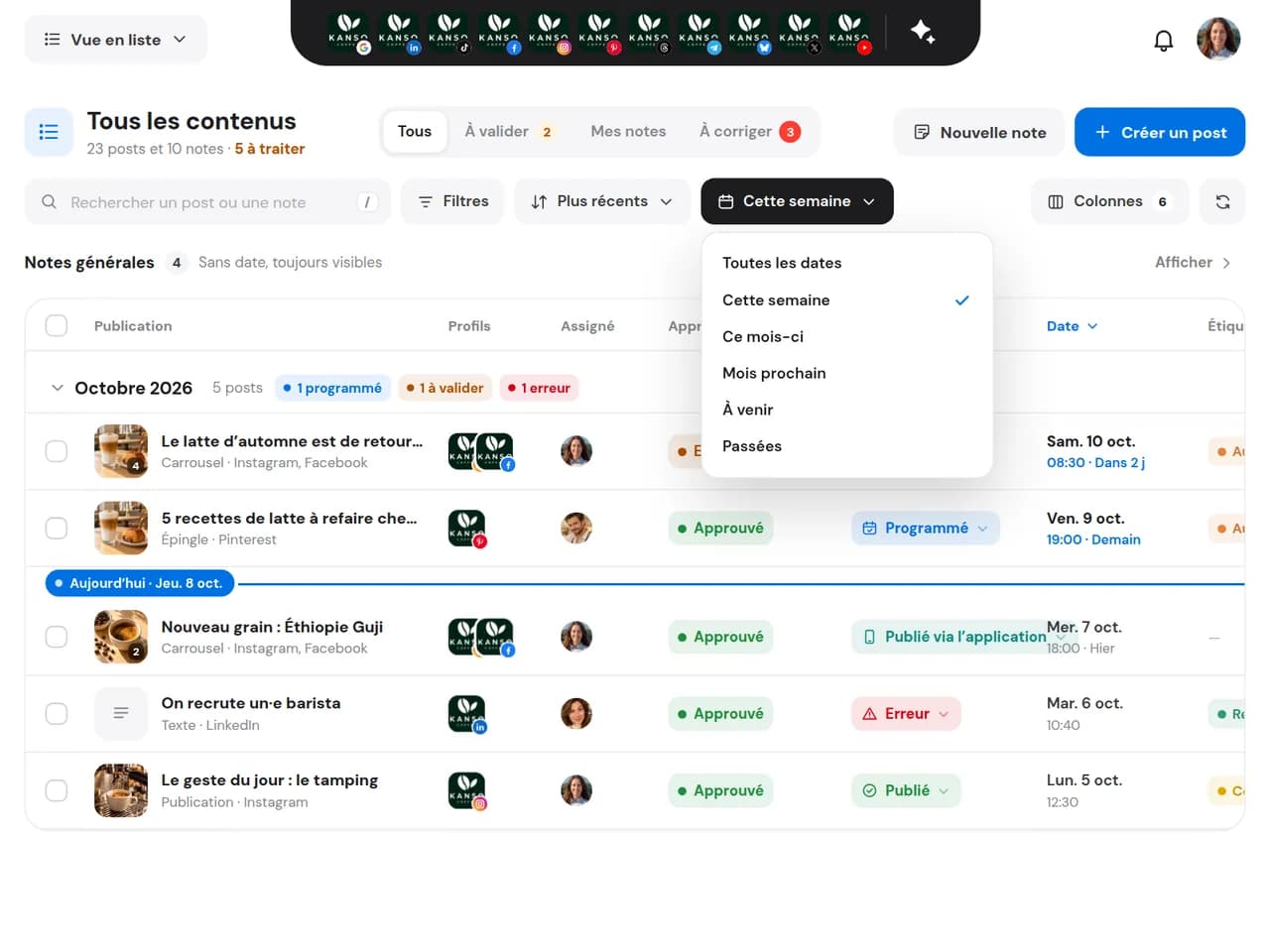
Filter “This week” and sort by status: see at a glance what is ready, waiting or blocked.
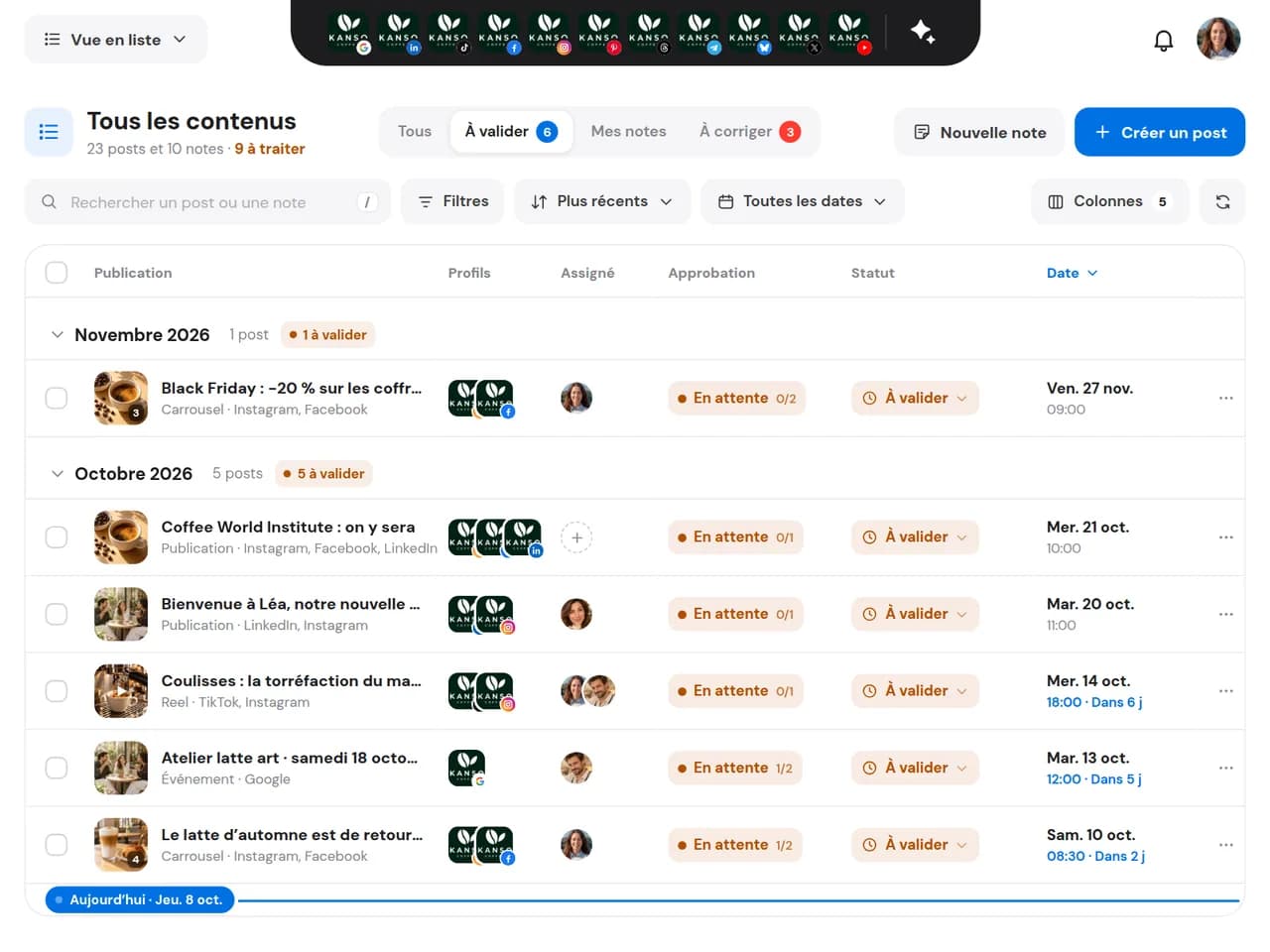
The “To approve” tab collects posts sent to the client; the Approval column shows who approved and who requested changes.
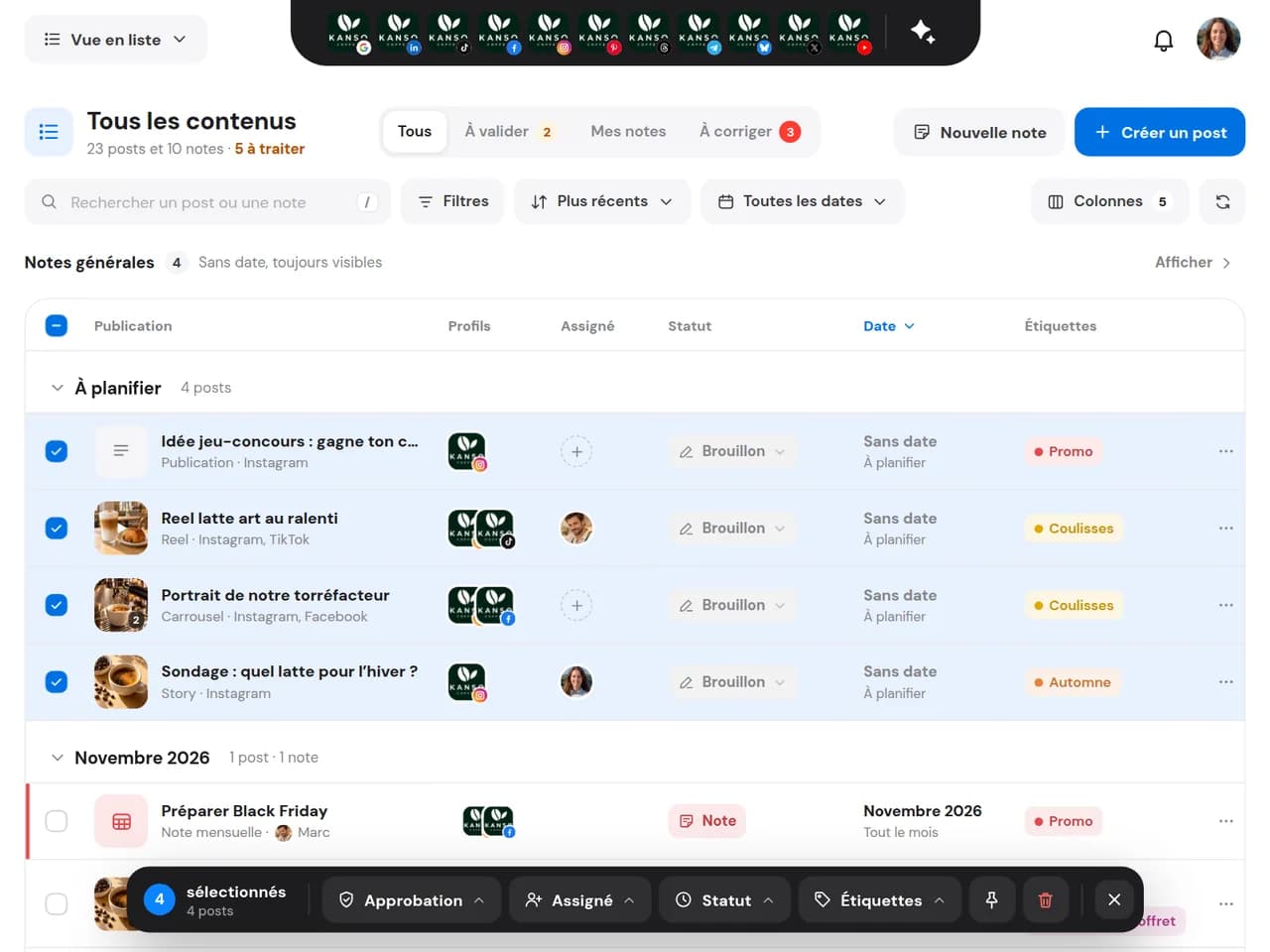
Undated posts stay at the top as “To schedule”. Select, assign and send them for approval together.
Filter “This week” and sort by status: see at a glance what is ready, waiting or blocked.
The “To approve” tab collects posts sent to the client; the Approval column shows who approved and who requested changes.
Undated posts stay at the top as “To schedule”. Select, assign and send them for approval together.
Yes. List view keeps the spreadsheet approach—columns, filters and sorting—but every row is a real post that can be approved, scheduled and published from the list.
You will recognise columns, labels, notes and filtered views. The difference is that posts publish automatically to your networks, without copying and pasting.
Yes. Export the list as CSV whenever needed for a review or archive.
Assign a member, add a label, change status, pin, send for approval or delete.
Not if you choose otherwise. From the Start plan, the Clients column lets you hide a post from your client in one click.
Yes. Each team member keeps their columns, sorting and settings.
To keep ideas, instructions and important dates in your schedule: a general note pinned at the top, a monthly note or a note on a specific date with a reminder.
Connect your networks and find all your posts in a clear list.
Start for free14 days free, no credit card required